
If you’ve ever wondered how to type emojis on Chromebook, you’re definitely not alone. Whether you’re chatting on Google Docs, sending messages, or posting on social media, emojis make everything feel more expressive and fun.
The good news? Learning how to get emojis on Chromebook is actually super easy—and once you know the shortcuts, you’ll be using them everywhere without even thinking about it.
Let’s break it down in a simple, human way so you can start using emojis instantly.
What Are Emojis on Chromebook?
Before jumping into how to use emojis on Chromebook, let’s quickly understand what’s happening behind the scenes.
Emojis are built into ChromeOS, meaning you don’t need to install anything extra. You can access them using:
- Keyboard shortcuts
- Right-click menu
- On-screen tools
- Touchscreen input (on supported devices)
In short, your Chromebook already has everything you need.
Shortcut for Emojis on Chromebook (Fastest Method)
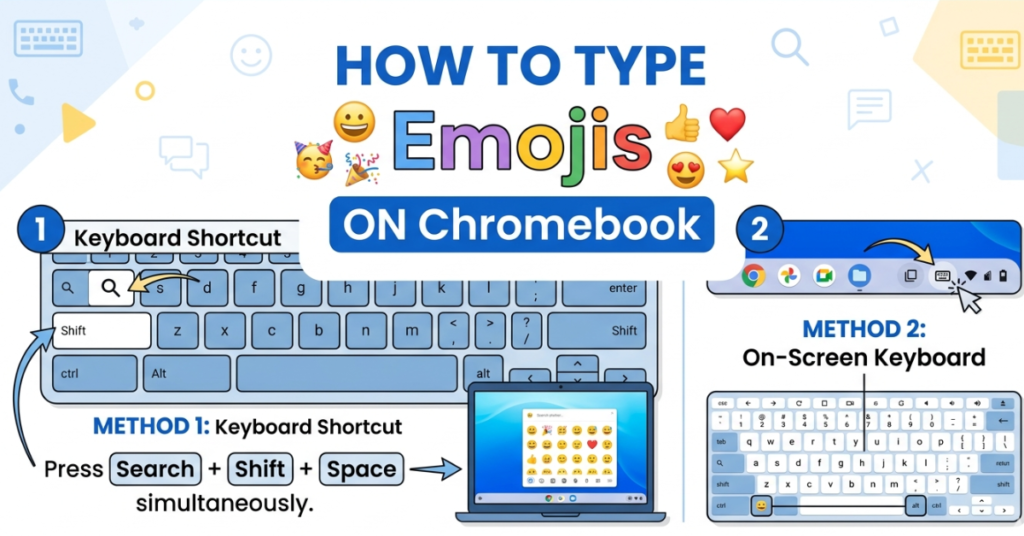
If you only learn one thing from this guide, make it this section. The shortcut for emojis on Chromebook is the quickest way to access them.
Keyboard shortcut:
Press: Search (🔍) + Shift + Space
This instantly opens the emoji picker.
What you’ll see:
- Smileys and faces
- Food and drinks
- Animals
- Symbols
- Recently used emojis
This is the fastest way for anyone searching how to open emojis on Chromebook.
How to Get Emojis on Chromebook Using Right-Click
Another easy method for how to add emojis on Chromebook is using the context menu.
Steps:
- Right-click in any text field
- Select “Emoji”
- Browse or search emojis
- Click to insert
This works in Google Docs, Gmail, and most websites.
How to Do Emojis on Chromebook with Touchscreen
If you’re using a touchscreen Chromebook, how to do emojis on Chromebook becomes even easier.
Steps:
- Tap the text field
- Hold down or tap the emoji icon on the keyboard
- Select your emoji
It feels just like using a phone.
How to Access Emojis on Chromebook Keyboard
Many users ask how to access emojis on Chromebook without shortcuts.
You can also:
- Open the on-screen keyboard
- Tap the emoji button
- Scroll through categories
This method is helpful if your keyboard shortcuts don’t work.
How to Put Emojis on Chromebook in Apps
Whether you’re typing in Gmail, Docs, or social media, how to put emojis on Chromebook is consistent across apps.
Popular apps where emojis work:
- Google Docs
- Gmail
- WhatsApp Web
- Instagram Web
- Slack and Discord
Just place your cursor and insert emojis using any method above.
How to Make Emojis on Chromebook (Custom Use)
Technically, how to make emojis on Chromebook doesn’t mean creating new emojis—but you can combine them creatively.
Examples:
- 😎🔥 = cool + hype
- 😂😂😂 = strong reaction
- 💡📚 = learning idea
You can also copy emojis from websites or emoji libraries and paste them anywhere.
How to Use Emojis on Chromebook Like a Pro
Once you understand how to use emojis on Chromebook, it becomes part of your typing style.
Tips for better emoji use:
- Don’t overuse emojis in formal writing
- Use them to add tone (fun, friendly, emotional)
- Combine emojis for storytelling
- Match emojis with context
Example:
- “Great job!”
- “Let’s go on vacation!”
Common Problems with Emojis on Chromebook
Sometimes users struggle with how to type emojis on Chromebook due to small issues.
Common issues:
- Shortcut not working
- Old ChromeOS version
- App compatibility issues
- Keyboard settings changed
Fixes:
- Update ChromeOS
- Restart Chromebook
- Check keyboard settings
- Use right-click method instead
Why Emojis Matter in Everyday Use
Using emojis on Chromebook isn’t just fun—it actually improves communication.
Benefits:
- Makes messages clearer
- Adds emotional tone
- Improves engagement
- Helps avoid misunderstandings
That’s why people search so often for how to get emojis on Chromebook.
Quick Summary
| Method | Best For |
| Search + Shift + Space | Fast access |
| Right-click menu | Beginners |
| Touchscreen keyboard | Tablets/2-in-1 devices |
| On-screen keyboard | Backup option |
FAQs
1. How do I type emojis on Chromebook?
Press Search + Shift + Space or use the right-click emoji option.
2. How do I get emojis on Chromebook quickly?
The fastest way is using the emoji shortcut or on-screen keyboard.
3. What is the shortcut for emojis on Chromebook?
The shortcut is Search key + Shift + Spacebar.
4. Why can’t I access emojis on my Chromebook?
You may need to update ChromeOS or use the right-click method.
5. Can I use emojis in Google Docs on Chromebook?
Yes, emojis work in Google Docs, Gmail, and most apps.
Conclusion
Learning how to type emojis on Chromebook is actually much easier than most people think. Whether you use the shortcut for emojis on Chromebook, the right-click menu, or the on-screen keyboard, you have multiple simple ways to express yourself.
Once you get comfortable with how to use emojis on Chromebook, it quickly becomes second nature—making your messages more fun, expressive, and engaging.