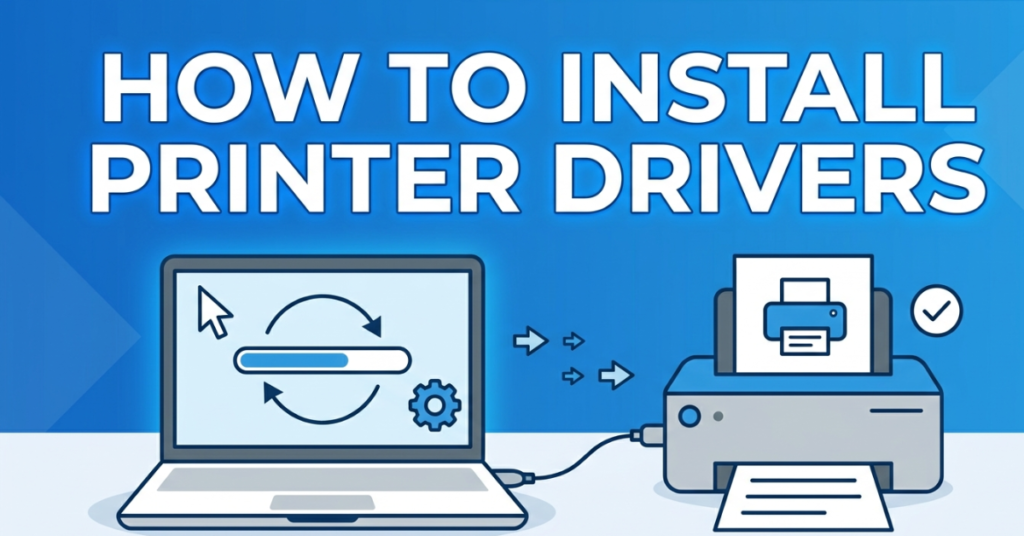

If your printer isn’t working, showing errors, or simply refusing to connect, the issue is often missing or outdated software. Learning how to install printer drivers is the first step to fixing it.
In simple terms, printer drivers are the bridge between your computer and printer. Without them, your system doesn’t know how to communicate with the device. In this guide, we’ll walk through how to install printer drivers on Windows 11, Mac, Windows 7, and laptops in a clear, beginner-friendly way that anyone can follow.
What Are Printer Drivers?
Before learning how to install printer drivers in laptop or PC, it helps to understand what they actually do.
A printer driver is:
- Software that connects your computer to the printer
- A translator between device and printer commands
- Essential for printing documents correctly
Without it, your printer may not respond at all.
How to Install Printer Drivers on Windows 11
If you’re using a modern system, here’s how to install printer drivers on Windows 11 step by step:
Step 1: Connect Your Printer
- Plug in via USB or connect to Wi-Fi
- Turn on the printer
Step 2: Automatic Installation
Windows 11 often installs drivers automatically:
- Go to Settings > Bluetooth & Devices > Printers & Scanners
- Click “Add Device”
- Select your printer
Step 3: Manual Installation (If Needed)
If it doesn’t install:
- Visit the printer brand website (HP, Canon, Epson, Brother)
- Download the latest driver
- Run the setup file
This is the most reliable way for how to install printer drivers on Windows 11.
How to Install Printer Drivers on Windows 7
Even though Windows 7 is older, many users still rely on it. Here’s how to install printer drivers in Windows 7:
Step 1: Download Drivers
- Go to the manufacturer’s website
- Choose Windows 7 version
Step2: Install the Software
- Open the downloaded file
- Follow installation wizard steps
Step 3: Add Printer
- Go to Control Panel
- Click Devices and Printers
- Select “Add Printer”
How to Install Printer Drivers on Mac
Mac systems are usually more automated, but here’s how to install printer drivers on Mac properly:
Step1: Connect Printer
- Use USB or Wi-Fi connection
Step2: Add Printer
- Go to System Settings > Printers & Scanners
- Click “Add Printer”
Step3: Install Driver Automatically
Mac often downloads drivers automatically from Apple servers.
How to Install Printer Drivers on a Mac (Manual Method)
If automatic setup fails, here’s how to install printer drivers on a Mac manually:
- Visit the printer manufacturer’s support page
- Download macOS-compatible driver
- Open .dmg file and install
- Restart your Mac
How to Install Printer Drivers in Laptop
Whether Windows or Mac, how to install printer drivers in laptop follows similar steps:
Universal Method:
- Connect printer (USB/Wi-Fi)
- Let OS detect device
- Install drivers automatically or manually
- Test print a page
Common Printer Driver Problems and Fixes
Sometimes installation doesn’t go smoothly. Here are common issues:
1. Printer Not Detected
- Check cable or Wi-Fi connection
- Restart printer and laptop
2. Driver Not Installing
- Download latest version
- Disable antivirus temporarily
3. Printer Showing Offline
- Set printer as default
- Restart print spooler service
Why Printer Drivers Are Important
Understanding how to install printer drivers matters because they:
- Ensure correct printing quality
- Enable wireless printing features
- Fix compatibility issues
- Improve printer performance
Without drivers, even a high-end printer won’t function properly.
Tips for Smooth Printer Setup
To avoid issues while learning how to install printer drivers:
- Always download drivers from official websites
- Keep operating system updated
- Restart system after installation
- Use correct driver version for your OS
Read also <<< Windows Shift S Not Working
FAQs
1. How to install printer driver on Windows 11?
Go to Settings > Printers & Scanners, or download drivers from the manufacturer’s website.
2. How to install printer driver on Mac?
Use System Settings > Printers & Scanners or install drivers from official websites.
3. How to install printer driver in Windows 7?
Download drivers manually and install using Control Panel > Devices and Printers.
4. Why won’t my printer install driver?
It may be due to outdated software, incorrect driver version, or connection issues.
5. Do laptops need printer drivers?
Yes, laptops require drivers to communicate with printers properly.
Conclusion
Learning how to install printer drivers is essential for anyone using a printer at home or in the office. Whether you’re setting up Windows 11, Mac, Windows 7, or any laptop, the process is straightforward once you know the steps.
The key takeaway is simple: always use the correct driver for your system and download it from trusted sources. Once installed correctly, your printer will work smoothly without errors or connection issues.
If your printer still acts up, reinstalling the driver or updating it usually solves the problem quickly.